
Download Handy Clock – Realistic, Flexible Timekeeping for Windows & macOS
Overview
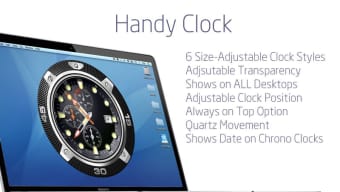
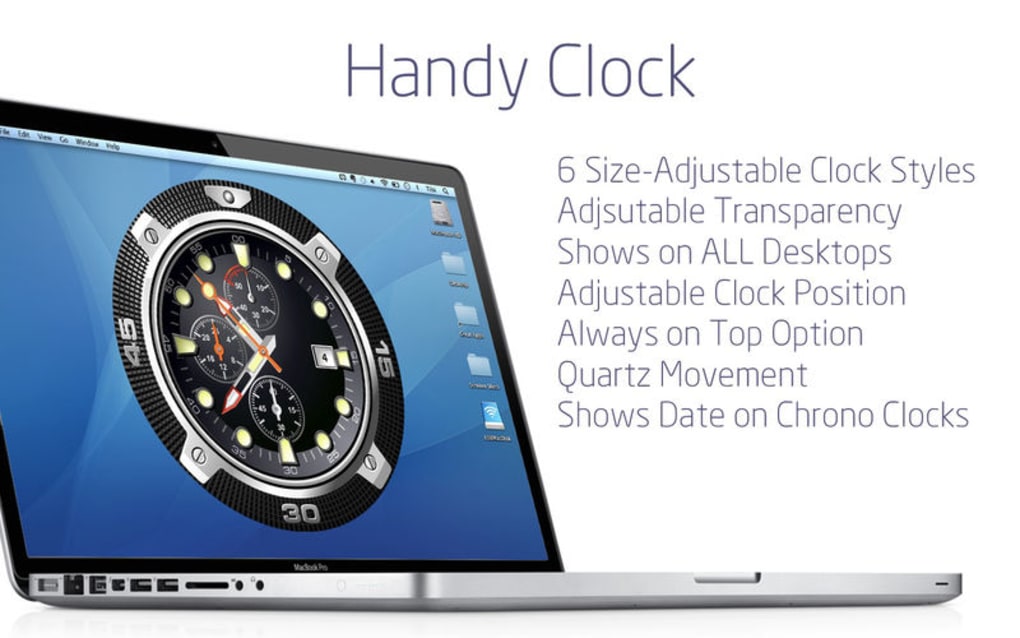
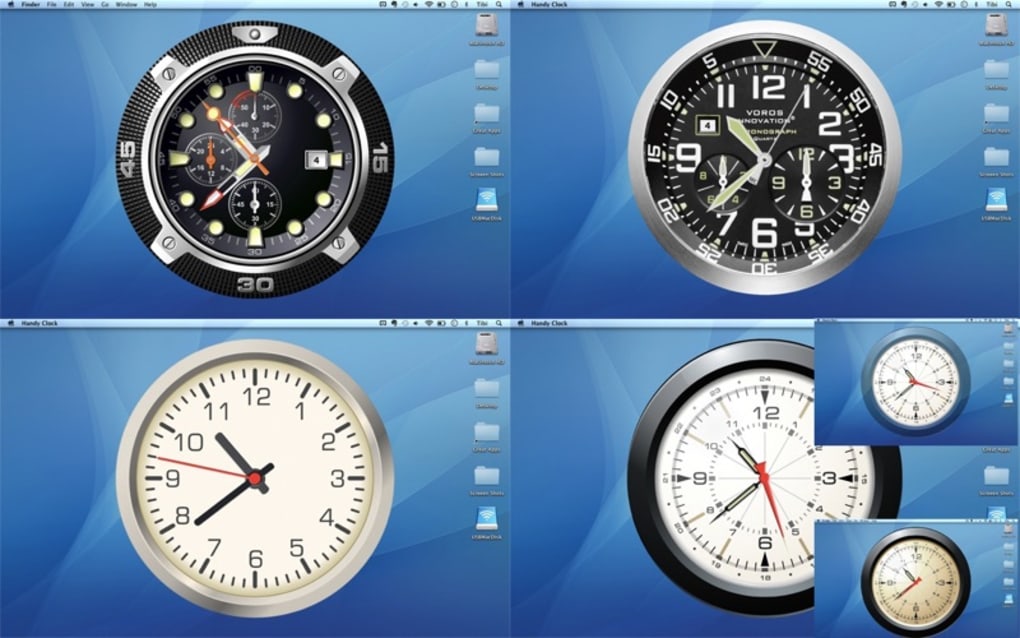
Handy Clock is a beautifully crafted time‑keeping application designed for personal computers. Unlike generic desktop clocks, Handy Clock offers six meticulously designed clock templates that mimic classic analog faces, modern digital displays, and even themed designs for enthusiasts who love a touch of personality on their desktop. The graphics are rendered with high‑resolution textures, providing a realistic look that adapts to any screen resolution without losing clarity.
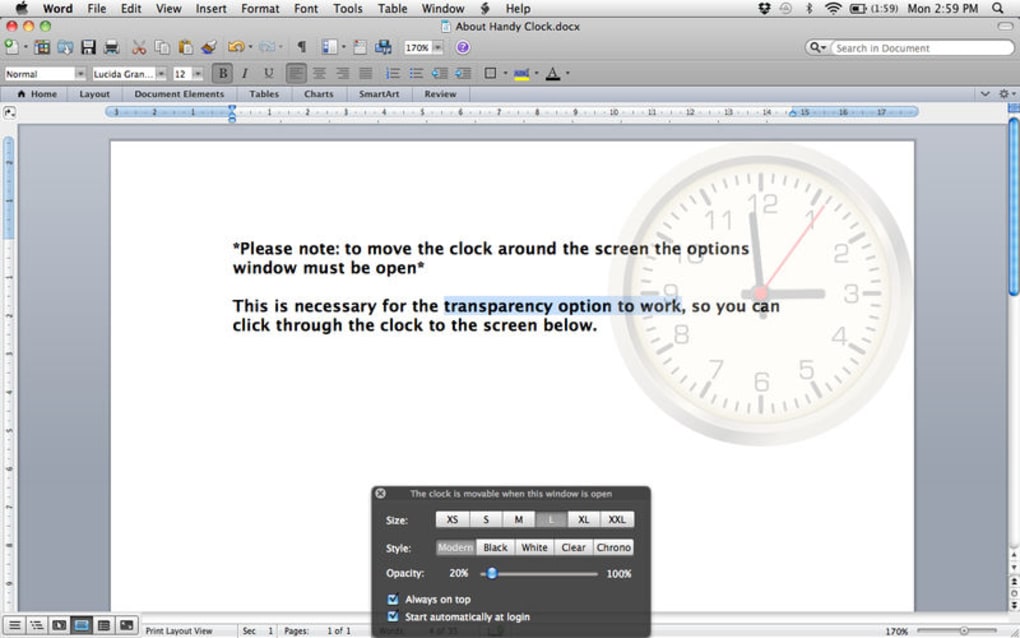
Users can freely reposition the clock anywhere on the desktop, resize it to suit their workflow, and even set transparency levels to keep the clock subtle yet visible. Beyond its aesthetic appeal, Handy Clock runs efficiently in the background, consuming minimal CPU and memory resources, making it ideal for both high‑performance workstations and modest laptops. The software is free to download, securely signed, and receives regular updates that add new templates, bug fixes, and performance improvements.
Whether you need a quick glance at the time while you work, a visual reminder for meeting schedules, or an elegant desktop accent, Handy Clock delivers a blend of form and function that few other clock utilities can match.
Key Features
- Six Distinct Clock Templates: Choose from classic analog, minimalist digital, vintage pocket watch, sleek modern, rustic wood‑grain, and a themed “space‑station” design.
- High‑Resolution Graphics: Vector‑based rendering ensures crisp edges on 4K monitors and scaling without pixelation.
- Full Desktop Mobility: Drag‑and‑drop positioning, resize handles, and optional snap‑to‑grid for precise placement.
- Transparency & Opacity Controls: Adjust the clock’s opacity from fully opaque to a barely‑there overlay, perfect for multitasking environments.
- Customizable Time Zones: Display multiple zones simultaneously, ideal for remote workers and global teams.
- Battery‑Efficient Engine: Optimized code runs in the background with less than 2% CPU usage on idle.
- Automatic Updates: Integrated updater checks for new templates and performance patches without manual intervention.
- Free & Secure Download: Signed installer, no adware, and optional telemetry turned off by default.
Installation & Daily Usage Guide
Step‑by‑Step Installation
1. Download the Installer: Click the “Download Handy Clock” button on the official website. The file is a small .exe for Windows or .dmg for macOS, typically under 15 MB.
2. Run the Installer: On Windows, double‑click the .exe file and follow the on‑screen wizard. macOS users should open the .dmg, drag the Handy Clock icon to the Applications folder, and confirm any security prompts.
3. Accept Permissions: The app requests permission to run at startup and to draw over other windows. Granting these permissions ensures the clock appears instantly after you log in.
4. First Launch: After installation, launch Handy Clock from the Start menu or Launchpad. The default template (classic analog) appears centered on the screen.
Daily Use Tips
• Switch Templates: Right‑click the clock face and select “Change Template.” A submenu shows all six designs with preview thumbnails.
• Resize & Move: Hover over the clock’s edge until resize handles appear. Drag to adjust size, then click and drag the center to reposition.
• Opacity Slider: Access the settings panel via the system tray icon. The slider ranges from 10 % (almost invisible) to 100 % (fully opaque).
• Multiple Time Zones: In the settings, click “Add Time Zone” and choose any city from the global list. Each zone appears as a small sub‑clock beneath the main face.
• Automatic Updates: Handy Clock checks for updates every 24 hours. When a new version is available, a discreet notification appears; click “Update Now” to download and install without losing your current configuration.
By following these steps, users can have a fully personalized, always‑visible clock that blends seamlessly with any desktop layout.
Compatibility, System Requirements & Updates
Handy Clock is built with cross‑platform compatibility in mind. The application runs natively on the latest versions of Windows and macOS, and a lightweight version is also available for Linux users via a community‑maintained package.
Supported Operating Systems (itemprop="operatingSystem")
- Windows 10, Windows 11 (64‑bit)
- macOS 10.15 Catalina and later (Intel & Apple Silicon)
- Ubuntu 20.04 LTS and newer (via .deb package)
Minimum System Requirements
- CPU: Dual‑core 1.5 GHz or faster
- RAM: 256 MB (minimum), 512 MB recommended
- Graphics: Integrated GPU with DirectX 9.0c / OpenGL 2.1 support
- Disk Space: 30 MB for installation and updates
- Internet: Required for initial download and update checks
Update Cycle & Security
The development team releases a minor update roughly every six weeks, focusing on new templates, performance tweaks, and security patches. Major releases, introducing UI overhauls or additional functionality (e.g., alarm integration), appear roughly once a year. All updates are digitally signed, guaranteeing authenticity and protecting users from tampered binaries. Users can enable automatic updates in the preferences pane, ensuring they always have the most secure and feature‑rich version without manual intervention.
Pros, Cons, FAQ & Final Verdict
Pros
- Visually stunning, high‑resolution clock faces.
- Six fully customizable templates for personal style.
- Lightweight and battery‑friendly; <2 % CPU on idle.
- Easy drag‑and‑drop positioning with opacity controls.
- Supports multiple time zones and automatic updates.
- Free, ad‑free, and securely signed installer.
Cons
- No built‑in alarm or timer functionality (requires separate app).
- Limited to desktop environments; no mobile companion.
- Customization of hand styles is limited to the six presets.
Frequently Asked Questions
Is Handy Clock completely free?
Yes, Handy Clock is offered at no cost. There are no hidden fees, ads, or premium upgrades. The developers fund the project through optional donations.
Can I run Handy Clock on a dual‑monitor setup?
Absolutely. The clock can be positioned on any screen in a multi‑monitor configuration. Each monitor maintains its own instance, allowing you to show different time zones on each display.
Does Handy Clock consume a lot of battery on laptops?
The application is optimized for low power usage. Tests show less than 2 % CPU load when idle, translating to negligible impact on battery life.
Can I change the clock’s font or hand colors?
Color customization is limited to the preset themes. However, each template includes a few built‑in color variants that can be toggled from the settings menu.
Is there a way to hide the clock automatically when I’m in full‑screen mode?
Yes. In the preferences, enable “Hide on Full‑Screen.” The clock will automatically disappear when an application enters full‑screen mode and reappear when you exit.
Conclusion & Call to Action
Handy Clock stands out in a crowded market of simple desktop timers by delivering a premium visual experience without sacrificing performance. Its six realistic templates, flexible positioning, and multi‑zone support make it a valuable addition for professionals, remote workers, and anyone who appreciates a well‑designed desktop accessory. While it lacks built‑in alarm features, the core time‑keeping functionality is robust, free, and secure. If you’re looking for a lightweight, aesthetically pleasing clock that integrates seamlessly with Windows or macOS, Handy Clock is the clear choice. Download Handy Clock today to personalize your workspace and keep time in style.







